



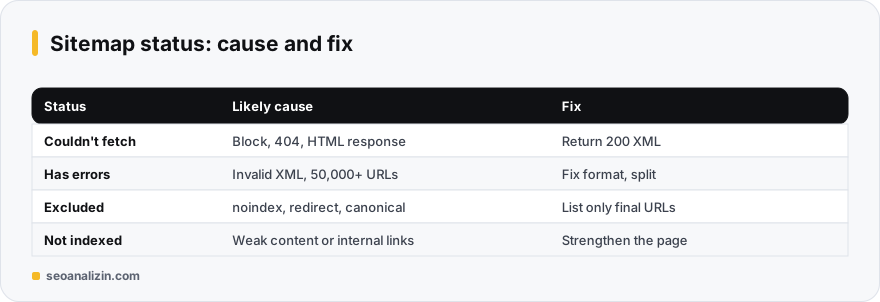
When you submit a sitemap to Search Console you may see “Couldn't fetch” or “Has errors,” or some submitted URLs may show as not indexed in the Pages report. These are two different problems: the first means the file could not be read, the second means it was read but the URLs inside are not working for you.
The “Couldn't fetch” error
It appears when Google cannot reach the file. It does not always mean a permanent problem; right after a fresh submission it can show for a while. Still, check the following:
- Does the address open in a browser and return 200? Verify the status code with the HTTP Header Checker.
- Does robots.txt block the sitemap address? See the robots.txt guide.
- Is a server or firewall blocking Googlebot? Bot protection or rate limits sometimes reject the bot.
- Is the address http or https, www or non-www? It must match the Search Console property.
- Is the file returning HTML? A redirect or error page may be serving HTML instead of XML.
“Has errors” and format errors
- Invalid XML: an unclosed tag or an unescaped
&character. - The file exceeds 50,000 URLs or 50 MB uncompressed: split it with a sitemap index file.
- URLs are not absolute or belong to another domain.
- The
lastmoddate format is wrong.
<?xml version="1.0" encoding="UTF-8"?>
<urlset xmlns="http://www.sitemaps.org/schemas/sitemap/0.9">
  <url>
    <loc>https://example.com/blog/post/</loc>
    <lastmod>2026-11-13</lastmod>
  </url>
</urlset>
Why are submitted URLs excluded?
Even with a valid sitemap, the URLs in it may not enter the index. In the Pages report, filter by sitemap and look at the reason:
- A noindex tag is present: remove the URL from the sitemap or remove the tag.
- robots.txt blocks it: fix the rule.
- Redirect or 404: the sitemap should contain only final URLs that return 200.
- Canonical points elsewhere: put the canonical address in the sitemap. See the alternate page warning.
- Crawled/discovered but not indexed: a content and internal-linking issue; see this guide.
Quick check
The Sitemap Checker reads the file, then lists the status code of each URL and problems such as redirects or noindex. After fixing, resubmit the file in Search Console and look again in a few days. For sitemap basics, see the XML sitemap guide.
A debugging order
With a sitemap problem, the fastest route is to separate the problem into layers:
- Access to the file: does the address open in a browser and return 200?
- Validity of the file: does the XML close properly and is the URL count under the limit?
- Health of the URLs: do the addresses inside return 200, or have noindex or redirects?
- Index result: what is the status of these addresses in the Pages report?
Do not move to the next layer without verifying each in order; most “problems” are solved in the first two layers.
The limits of a sitemap
- One file can hold at most 50,000 URLs and 50 MB uncompressed. For more, split into several files and list them in a sitemap index.
- The file must be UTF-8 and the URLs must be absolute (starting with
https://). - A sitemap may only list URLs for its own site and protocol; do not put
wwwURLs in the file of a non-wwwsite. - Characters such as
&in a URL must be written as&in XML; otherwise the file reports a “format error”. - Google ignores
priorityandchangefreq;lastmodhelps only if it is updated when the page really changes.
Error message, likely cause, fix
- “Couldn't fetch” and the server returns 403 or 5xx: a firewall (WAF) or the host may be blocking Googlebot. Even if you can open the file in a browser, Google may get a different response; check your server logs.
- “Couldn't fetch” and the file sits behind a redirect chain: submit the sitemap straight at the final address (
httpsrather thanhttp, the samewwwform as the canonical one). - “Has errors” with XML declaration not at the start: there is whitespace, a BOM or a PHP notice before the first line. The first character must be
<. - “Has errors” with invalid URL: a relative address (
/blog/), an address with spaces or an unescaped&. - The sitemap returns HTML: a plugin or cache is serving an error page with a 200 status. Check the file with
curl -Ior view the source in a browser.
A quick manual check
curl -I https://example.com/sitemap.xml
# Expected: HTTP/2 200 and content-type: application/xml (or text/xml)

curl -s https://example.com/sitemap.xml | head -5
# The first line should begin with <?xml, followed by <urlset or <sitemapindex
If both outputs look right, the file is most likely sound and the problem lies in Google's access at that moment or in the URLs inside the sitemap.
What belongs in a sitemap, and what does not
A sitemap is a list of “canonical URLs I want Google to index.” Leave out noindex pages, URLs that redirect, URLs that return 404, URLs blocked by robots.txt and duplicates whose canonical points elsewhere. While they stay in the sitemap they produce coverage warnings and lower the file's credibility. A clean list is the most valuable thing about a sitemap.
Using lastmod correctly
Google uses the lastmod date only when it has seen that the value is consistently accurate. A plugin that sets every page's date to “today” on each build ruins that trust. Update the date when the content changes in a meaningful way, not for a small typo fix or a sidebar change.
Sitemap index layout for large sites
On sites beyond a few thousand URLs, splitting the content by type makes both management and debugging easier: sitemap-blog.xml, sitemap-products.xml, sitemap-categories.xml. Submitting these files separately in Search Console lets you see how many URLs from each section are indexed.
After you clear the errors
- Resubmit the file in Search Console and wait until the status reads “Success”.
- Compare the number of submitted and indexed URLs with Sitemap Checker.
- Read the reason for URLs that are not indexed from the status description in the Pages report; see the guides on discovered, currently not indexed and crawled, currently not indexed.
Common sitemap questions
It says “Couldn't fetch” but the file opens. Why?
Google's bot may have seen different behaviour: a firewall, a temporary server error or a cache. Wait a few days and resubmit.
Must every URL in the sitemap be indexed?
No. A sitemap is a suggestion and does not guarantee indexing.
How often should I submit a sitemap?
Once is enough. Google rereads an updated file from time to time anyway.



Join the discussion
Share your experience or ask a question about this guide.