



robots.txt is a plain-text file that tells search engine bots which parts of your site you want them to crawl. It controls crawling, not the index: a blocked address can still appear in the index as a bare URL if other sites link to it. To remove a page from search you need noindex; the difference is covered in the robots.txt vs noindex guide.
Rules of the file
- It must be named exactly
robots.txtand sit at the root of the domain:https://example.com/robots.txt. - It must be UTF-8 plain text and return a 200 status code. Path names are case-sensitive.
- Every subdomain (and every http/https variant) has its own file.
- Google processes the first 500 KB of the file; anything beyond is ignored.
Core directives
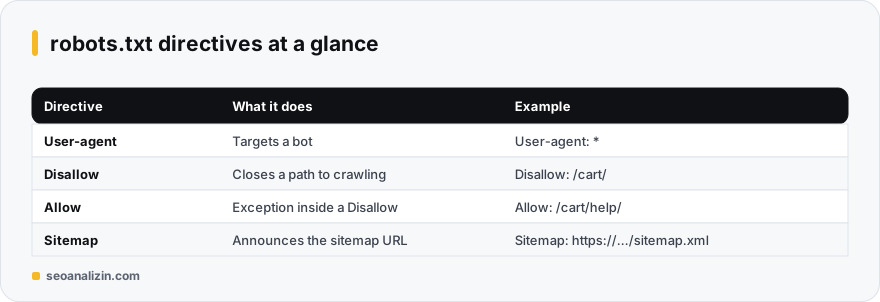
User-agent: names the bot a rule applies to;*means all bots.Disallow: a path you do not want crawled.Allow: defines an exception inside a Disallow rule.Sitemap: the full URL of the sitemap, which can appear anywhere.*is a wildcard and$means end of URL.
Example: a general site
User-agent: *
Disallow: /admin/
Disallow: /cart/
Disallow: /*?session=
Allow: /admin/help/

Sitemap: https://example.com/sitemap.xml
Example: WordPress
User-agent: *
Disallow: /wp-admin/
Allow: /wp-admin/admin-ajax.php

Sitemap: https://example.com/wp-sitemap.xml
For WordPress specifics, see robots.txt and sitemap in WordPress.
Testing it
- Open the file in the browser and confirm it shows as plain text.
- Try your important pages with the robots.txt Tester to make sure none are blocked.
- Check how Google reads the file under Settings > robots.txt in Search Console.
- Try new rules on a staging copy first: a single
Disallow: /takes the whole site out of crawling.
If you would rather not write the file from scratch, the robots.txt Generator produces a ready draft.
Common robots.txt mistakes
- Blocking CSS and JavaScript files: Google cannot render the page properly.
- Writing noindex in the file: Google does not support a
Noindexdirective in robots.txt. - Adding noindex to a blocked page: the bot cannot read the page, so it never sees the tag.
- Forgetting a
Disallow: /line left over from staging on the live site.
Example: a rule set for an e-commerce site
On a store, cart, checkout, account and internal search pages carry no value in search; crawling them wastes crawl resources. A sensible rule set:
User-agent: *
Disallow: /cart/
Disallow: /checkout/
Disallow: /account/
Disallow: /search?
Sitemap: https://example.com/sitemap.xml
Do not block product, category and content pages, or CSS and JavaScript files. Before publishing new rules, try your important addresses with the robots.txt Tester.
Which rule wins when rules conflict?
When several rules match one URL, Google applies the longest (most specific) path match. If the lengths are equal, the less restrictive rule, Allow, wins. That lets you open a narrow exception inside a broad block:
User-agent: *
Disallow: /account/
Allow: /account/help/
Here /account/settings/ is blocked and /account/help/ is open, because the second rule is longer. The order of rules does not matter; the length does.
Wildcards and the end-of-URL marker
Google supports two special characters: * (any sequence of characters) and $ (the URL ends here). They help close parameter URLs and file types:
User-agent: *
# Search results and sorting parameters
Disallow: /*?search=
Disallow: /*?sort=
# File type: URLs ending in .pdf
Disallow: /*.pdf$
Each line solves a different problem: it stops filtered listings from creating endless combinations, or stops PDFs from being crawled. Always test a rule with sample URLs before you publish it; a badly written wildcard can close hundreds of pages you did not mean to.
robots.txt and noindex are not the same
This is the most common confusion. Disallow stops Google from crawling a page; it does not remove the page from the index. A URL that other sites link to can appear in results as a bare listing even if its content was never crawled. To remove a page from the index, add noindex to it and keep the page crawlable, because Google applies noindex only if it can fetch the page and see it. Putting noindex inside robots.txt has not been supported by Google since 2019. See the noindex guide for the details.
Do not block CSS and JavaScript files
Old advice told people to close /wp-content/ or /assets/. Today that does harm: Google renders a page like a browser, and if it cannot reach the style and script files it may misjudge how the page really looks and whether it is mobile-friendly. What you should close are the admin area, internal search result pages, the cart and checkout steps, and similar sections that serve no purpose in search.
What happens when the server returns an error?
- 404 or 410: Google assumes there is no file and treats everything as crawlable.
- 5xx or a timeout: Google may treat the whole site as closed for a while and pause crawling. That is why the file should always return 200.
- Redirects: a few hops within the same site are followed, long chains count as a failure; do not redirect robots.txt.
- Size: Google processes the first 500 KiB of the file and ignores the rest. Use patterns instead of very long rule lists.
Google caches robots.txt and usually refreshes it about once a day, so do not expect a change to take effect at once. The robots.txt report in Search Console shows the latest fetched version and any errors.
A staging site is not protected by robots.txt
Hiding a test (staging) site with Disallow: / is not enough; the rule is a request, not an access block. Protect staging sites with a password or an IP restriction. The more common accident is the reverse: moving the staging Disallow: / file to production. On launch day, always check robots.txt by hand.
A six-step check before you publish
- Does the file open at exactly
/robots.txt, with a 200 status and as plain text? - Does every
User-agentblock have at least one rule under it? - Are your key pages (home, category, product, blog) blocked by any rule? Try 5–10 sample URLs in Robots.txt Tester.
- Are the CSS, JS and image folders open?
- Is the Sitemap line written with a full address (
https://...)? - Have you submitted the file in Search Console and cleared the error report?
Short answers about robots.txt
Is robots.txt required?
No. Without it bots may crawl everything. It is still useful for pointing to your sitemap and excluding low-value areas.
Does crawl-delay work in Google?
No, Google ignores that directive. Some other bots may honour it.
Can I protect private content with robots.txt?
No. The file is public and reveals the paths. Use login protection for private content.



Join the discussion
Share your experience or ask a question about this guide.