



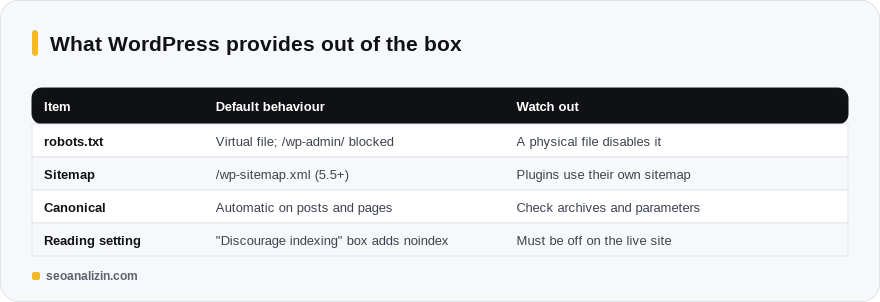
A WordPress install comes with three technical SEO elements ready: a virtual robots.txt, a built-in sitemap and automatic canonicals for posts. The problem is often not their absence but their conflict with an SEO plugin. First you need to know what produces what.
robots.txt
If there is no physical robots.txt in the site root, WordPress serves a virtual file; its content usually blocks the admin area and allows admin-ajax.php. Plugins such as Yoast and Rank Math let you edit this file from the dashboard. If you create a physical file, the virtual one is disabled.
User-agent: *
Disallow: /wp-admin/
Allow: /wp-admin/admin-ajax.php

Sitemap: https://example.com/wp-sitemap.xml- If the Settings > Reading > Discourage search engines from indexing this site box is checked, your site has noindex. Make sure it is off on the live site.
- Do not block wp-content/uploads or theme files; Google cannot see the page properly.
- For general rules see the robots.txt guide.
Sitemap
Since WordPress 5.5 the core generates a sitemap at /wp-sitemap.xml. Yoast and Rank Math produce their own sitemaps (usually /sitemap_index.xml) and disable the core one. What matters is using a single sitemap and submitting it to Search Console.
- Try opening the address in a browser to see which one works.
- Remove a second sitemap left over from old plugins.
- Do you really want tag, author and attachment sitemaps in the index? If not, turn them off in plugin settings.
- If you get errors, see sitemap errors.
Canonical
WordPress adds an automatic rel="canonical" to single posts and pages; SEO plugins extend it. For pagination, archives and parameter addresses, check the plugin's canonical setting.
- Check with the Canonical Checker that the canonical points to the page's own clean address.
- If the permalink structure changed, redirect old addresses with 301. See 301 vs 302.
Finding conflicts
- Open robots.txt in the browser and make sure you see the content you expect: robots.txt Tester.
- Run the sitemap address through the Sitemap Checker.
- Look at the canonical and robots meta tags in a post's source.
For all the settings to check after setup, see the WordPress SEO checklist.
Example: a sitemap that broke after switching plugins
A site moved from Yoast to Rank Math. In Search Console the old sitemap_index.xml address gives a “Couldn't fetch” error and the new sitemap has not yet been submitted. The fix: open the new plugin's sitemap address in a browser to verify it, remove the old sitemap in Search Console and submit the new one, and update the Sitemap: line in robots.txt.
When switching plugins, put these three (robots.txt, sitemap and canonical) on a checklist to verify together.
WordPress settings questions
Where do I edit robots.txt?
From your SEO plugin's tools section or by uploading a physical file to the root.
Is having two sitemaps a problem?
It does no harm but creates confusion. Pick one and turn off the other.
Should I change the canonical by hand?
On most pages there is no need. Set a custom canonical only on conflicting or duplicate pages.



Join the discussion
Share your experience or ask a question about this guide.